Getting Started
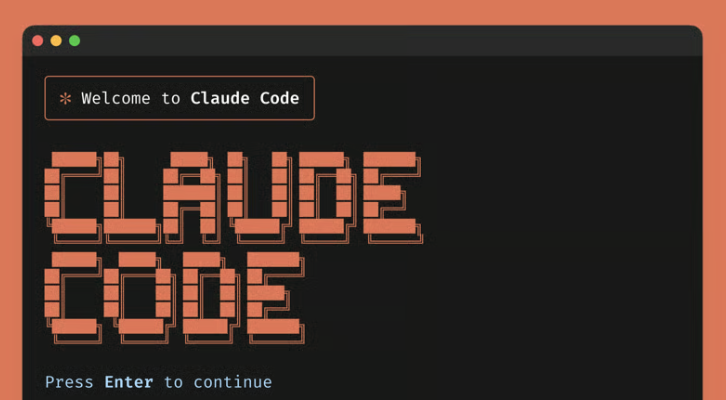
Welcome to Claude Code — an agentic coding tool that reads your codebase, edits files, runs commands, and integrates with your development tools. It's available in your terminal, IDE, desktop app, and browser.
This section gets you from zero to your first working session as quickly as possible.
What is Claude Code?
Claude Code is an AI-powered coding assistant that understands your entire codebase and can work across multiple files and tools to get things done. Unlike a simple autocomplete tool, it operates as an agent — it plans, executes, and verifies its own work.
You can use it to:
- Build features — describe what you want in plain language, and it writes the code across multiple files
- Fix bugs — paste an error or describe a symptom, and it traces the root cause and implements a fix
- Automate repetitive work — write tests, fix lint errors, resolve merge conflicts, update dependencies
- Manage git — stage changes, write commit messages, create branches, and open pull requests
Choose your environment
Claude Code runs across multiple surfaces. Pick the one that fits your workflow:
| Environment | Best for |
|---|---|
| Terminal CLI | Full-featured usage, scripting, CI/CD |
| VS Code | Inline diffs, plan review, editor integration |
| Desktop App | Visual diff review, multiple sessions, scheduled tasks |
| Web (claude.ai/code) | No local setup, long-running tasks, mobile access |
| JetBrains | IntelliJ, PyCharm, WebStorm integration |
All surfaces share the same underlying engine — your CLAUDE.md files, settings, and MCP servers work across all of them.
What's in this section
getting-started/
├── index.md          ← You are here
├── installation.md   → Install Claude Code on your machine
├── authentication.md → Log in and configure your API key
└── first-session.md  → Run your first real task
Follow the pages in order if you're starting from scratch:
- Installation — get Claude Code installed on macOS, Linux, or Windows
- Authentication — log in with your Claude account or API key
- Your First Session — run Claude Code on a real project
Quick install
If you just want to get started immediately on macOS, Linux, or WSL:
curl -fsSL https://claude.ai/install.sh | bashThen navigate to any project and run:
cd your-project
claude
You'll be prompted to log in on first use. That's it.
For Windows, JetBrains, VS Code, or the Desktop app — see the Installation page for full instructions.
Next steps
Once you're installed and authenticated, head to Your First Session to walk through exploring a codebase, making a change, and committing it — all through natural language.
When you're comfortable with the basics, continue with:
- Core Concepts — understand how the agent loop works and what CLAUDE.md does
- CLI Reference — every slash command and flag
- Workflows — practical patterns for daily coding tasks